
Your games
made easy.
CIDE Labs is a small studio building our own engine, tools and games. Our flagship is C-I-D-Editor (CIDE): a game engine and editor in one app. Your game runs live while you edit it, with song, character and stage editors, tilemap, sprite and menu editors, a built-in code editor, one-click export to a standalone game, and our own scripting language, CideScript.
Run CIDEditor-Setup-1.1.2.exe and follow the steps. It installs just for you (in your user folder), so your games and DLC can be saved next to the editor. Installing a newer version updates the old one, and uninstalling never touches the games you made.
What we make
.hx script does.New in 1.1.2
- Themes and styles. A visual upgrade for the whole editor. Make a theme from Editor Options with its own accent, base colour and background, and give it its own editor sounds. See Themes.
- Video. One
Videoclass plays a video as a sprite or as a full-screen cutscene. Songs can playstart-cutscene.mp4andend-cutscene.mp4in story mode with no script at all. See Videos. - A tidier game folder.
game.inion top, everything the game runs insrc/, and short names likeimg/andaudio/. Older games still load, and Tidy folders moves them over. See Game folders. - Your own classes go in
src/classes/and load withimport. See States & classes. - A save for each game. Every game keeps its own save file, and renaming a game keeps it.
New in 1.1
- Its own engine. CIDE no longer runs on Codename Engine. Songs, menus and state scripts all run on CIDE's own code. Import Game converts Codename Engine mods for you.
- Game Loader. Create, import, rename and set up games, edit their window settings and icon, and add DLC, all from one screen.
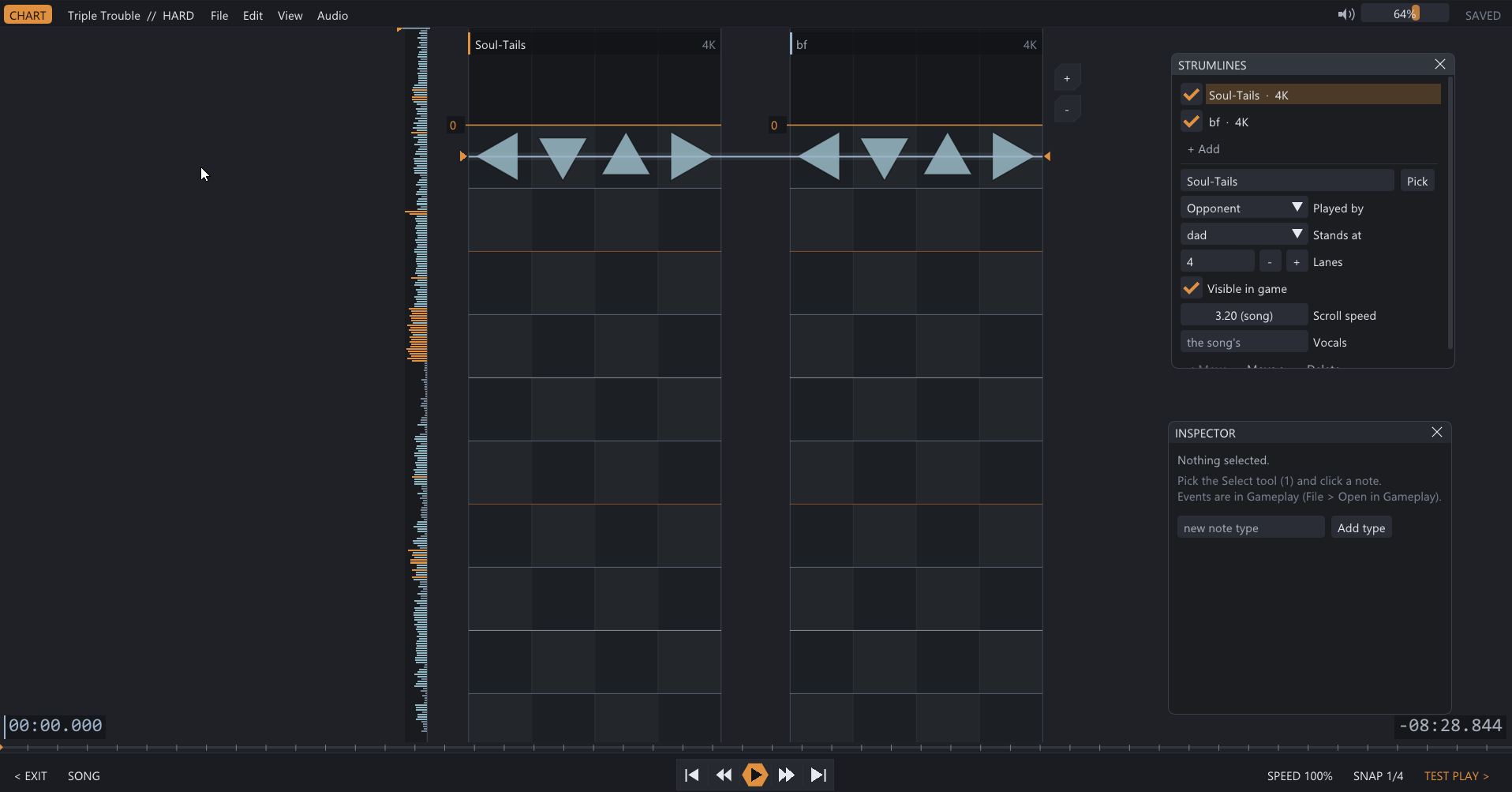
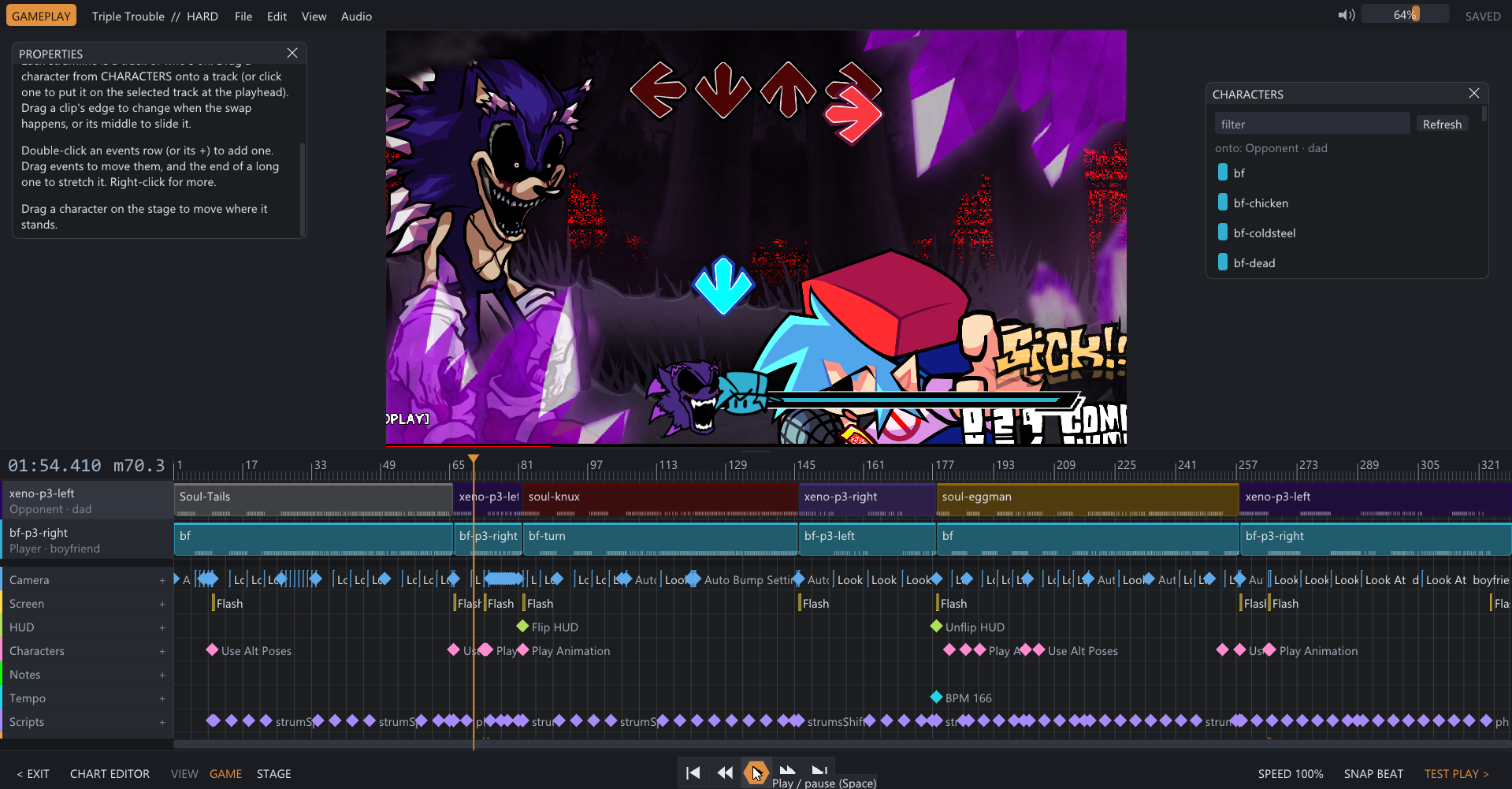
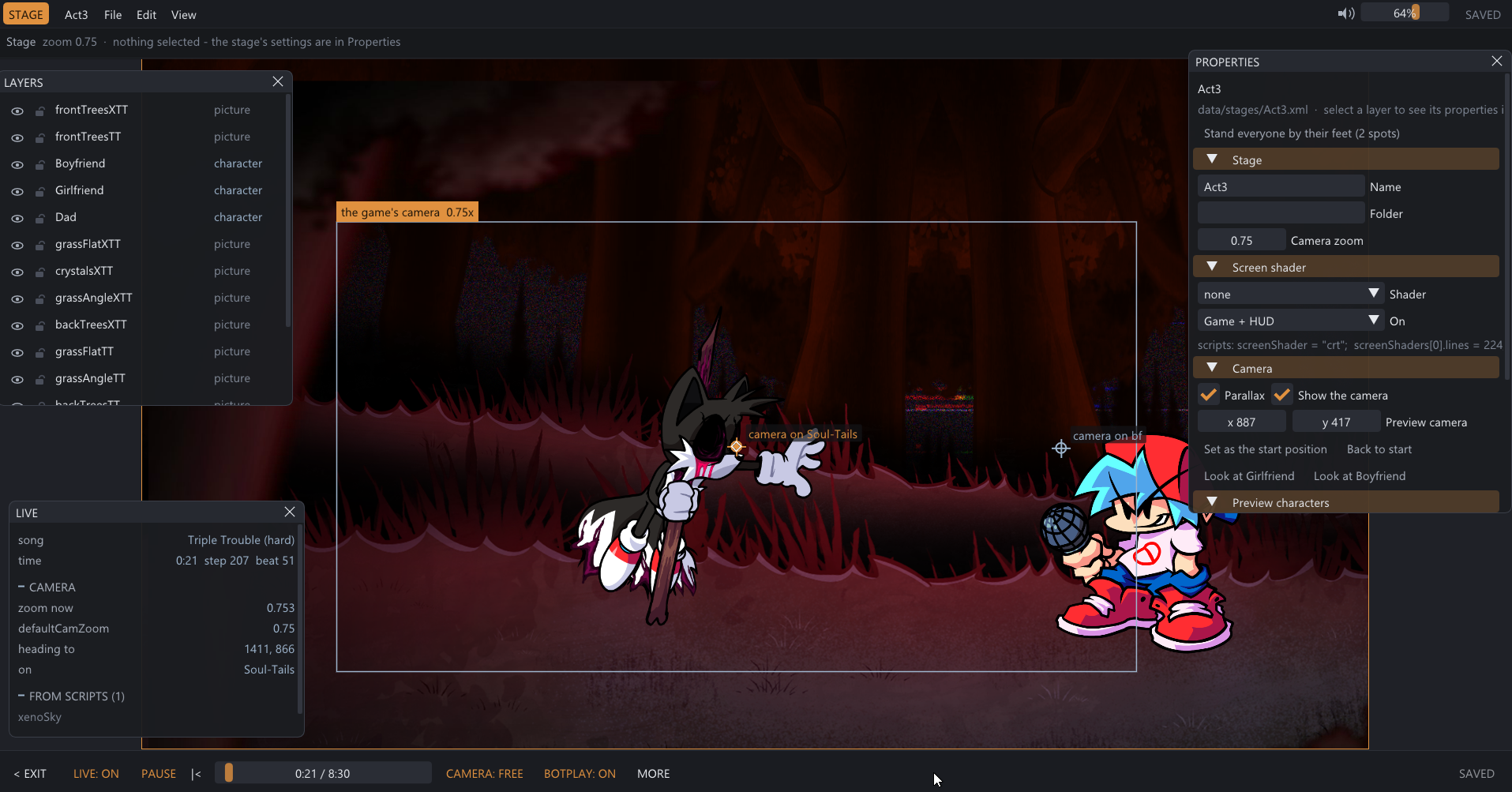
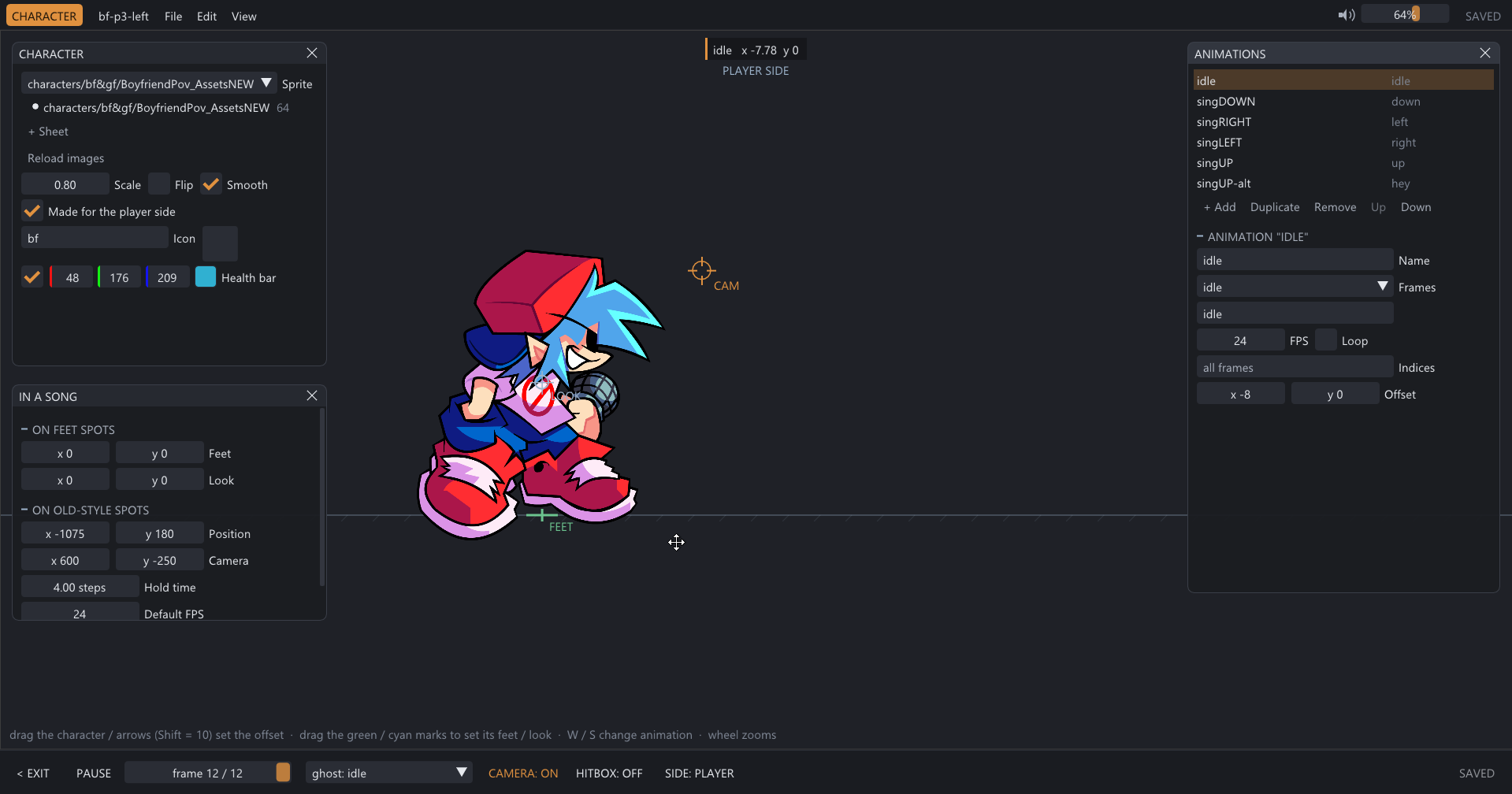
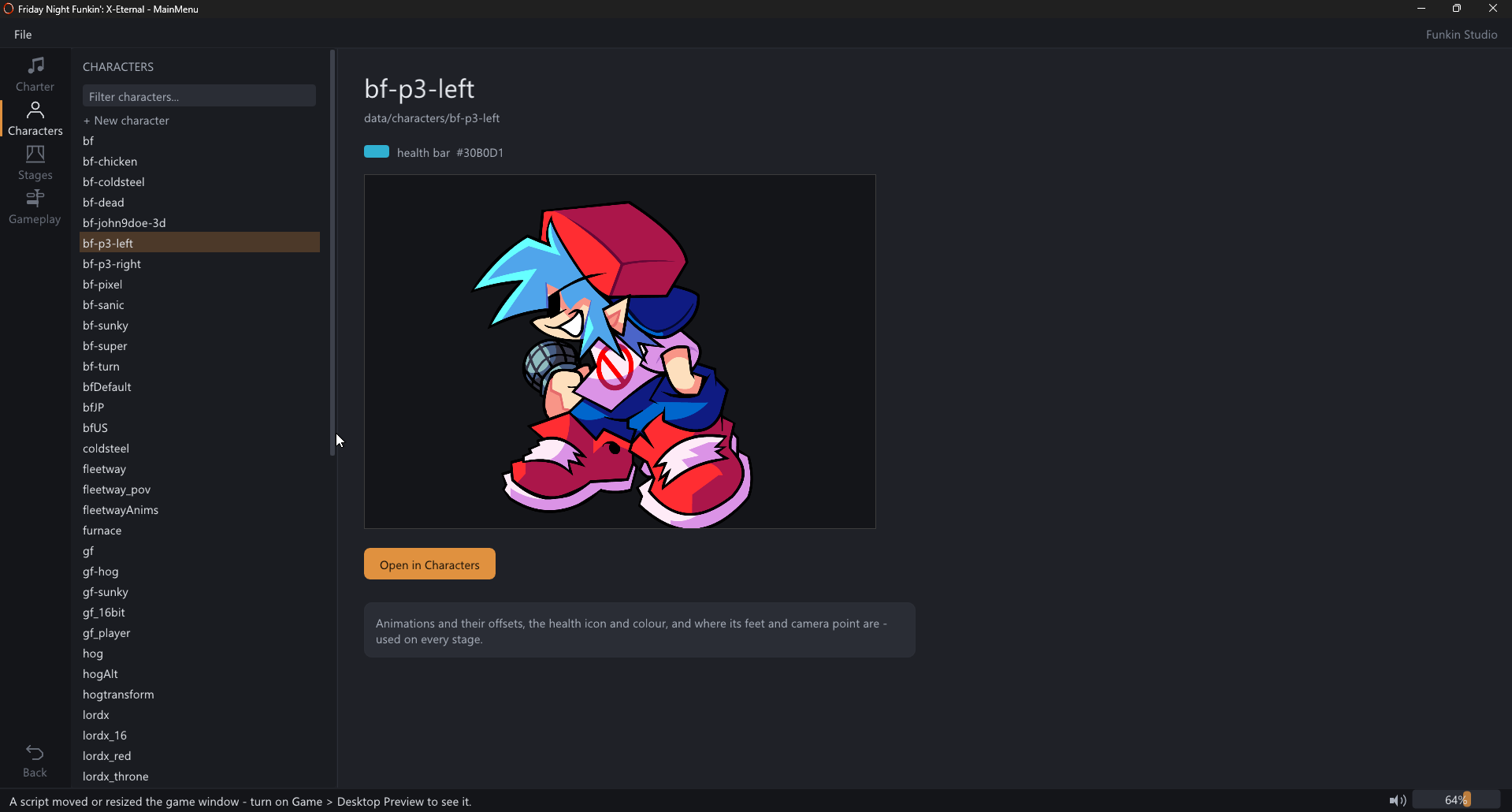
- Funkin Studio, rebuilt. The Charter, Characters and Stages editors, plus Gameplay: the song plays live on a timeline while you place events.
- New code editor. Find, comment lines, move lines, go to definition, and a "New script" menu with ready-made templates.
- Ship it. Export to a standalone
.exe, try it first with Play as Exported, check it with Asset Audit, or pack it into a password-locked.cdoc. - Themes. Change the editor's accent colour, background, sounds and layout. See Themes.
Inside CIDE
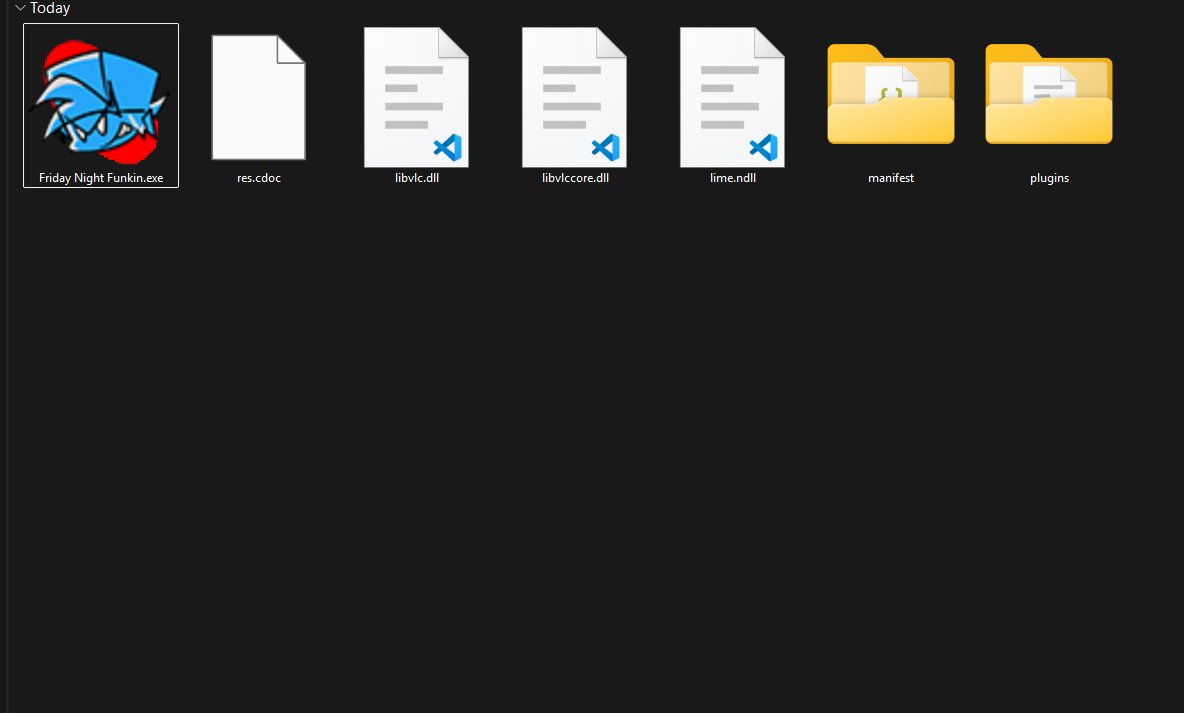
Screenshots from an earlier build of the editor, running on X-Eternal. Click any shot to see it full size.
Getting started
CIDEditor opens your game, runs it, and gives you every editor around it. Here's how to get from a download to your first edit.
Five steps
- Install CIDEditor. Download the installer from the Home page and run it. CIDEditor is Windows-only for now (Windows 10 or 11, 64-bit).
- Add a game. In the Game Loader, choose Create New Game to start from nothing, or Import Game to bring in a Codename Engine mod (see Importing mods). You can also drop a game folder into CIDEditor's
games/folder. - Open it. Pick your game and choose Edit. (Run just plays it.)
- Use the workbench. The workbench opens around the running game, starting on the Home tab. F9 hides it and brings it back. See The editors.
- Edit live. Change a script and press Ctrl+S. The game reloads it while it keeps running.
Zipped games
A .zip in games/ works too, as long as game.ini, src/ and img/ sit at the top of the zip, not inside another folder. See Game folders.
New scripts
A new game starts empty. Home's New script button gives you a ready-to-fill script for any of these:
- A state (a screen) or a substate (a pop-up)
- A class of your own (a sprite or object)
- A song, stage or character script
- A song event or a note type
- A global script, or a tilemap entity
Importing mods
CIDE has its own engine now, so Codename Engine mods need converting before they run. Import Game in the Game Loader does it for you.
What it changes
- It always works on a copy. Your original mod folder is never touched.
- The copy uses CIDE's compact layout:
data/config/modpack.inibecomesgame.iniat the top,data/becomessrc/,images/becomesimg/, and so on. - The mod's
source/folder (its own classes) becomessrc/classes/. Imports keep working, sinceimportlooks there. - Paths in scripts, XML and JSON that start with
mods/becomegames/. - Codename Engine class names become CIDE's (see below), and old engine imports are removed.
Anything it can't be sure about is left alone. If a script still uses an old name, its error message tells you the new one.
Renamed classes
| Codename Engine | CIDE |
|---|---|
CoolUtil | Utils |
FunkinSprite | GameSprite |
FunkinText | GameText |
CustomShader, FunkinShader | GameShader |
XMLUtil | SpriteXml |
Conductor | MusicClock |
ModState, MusicBeatState | ScriptedState |
ModSubState, MusicBeatSubstate | ScriptedSubState |
PlayState | RhythmPlayState |
PauseSubstate | PauseSubState |
EventManager | EventPool |
ModsFolder | GamesFolder |
TranslationUtil | Translations |
WindowUtils | WindowTitle |
Flags | GameFlags |
#if CODENAME_ENGINE | #if CIDE |
Rhythm-game names stay the same: Character, Note, Strum, StrumLine, HealthIcon, Alphabet, Options, Paths and the built-in menus.
Games already in games/
For a mod you dropped straight into games/, or one made with an older CIDE build, use Update to CIDE in the Game Loader. It checks the game first without changing anything, then Make Updated Copy converts its characters, stages, charts and scripts into a copy in the compact layout and saves a full report.
A game that only needs its folders renamed, with nothing else converted, can use Tidy folders instead. It works in place. See older games.
Game folders
Every game is one folder in games/. CIDE finds everything by where it lives. Everything the game runs on is in src/, and the pictures, sound and video sit next to it under short names.
Layout
my-game/
  game.ini                 # name, version, start state, redirects, flags
  icon.png                 # shown in the Games menu
  src/                     # everything the game runs
    states/                # state scripts: Level.hx, MainMenu.hx, Intro.cide ... (menus too)
    classes/               # your own classes: Spinner.hx, enemies/Slime.hx ... (import Spinner;)
    entities/              # one script per entity type: Player.hx, Coin.hx ...
    scripts/               # global.hx, pause and game-over scripts, extensions
    shaders/               # .frag / .vert for GameShader
    sprites/               # sprite editor files (art, animations, hitbox)
    maps/                  # levels from the tilemap editor
    tiles/                 # tilesets: tile size, per-tile collision masks
    chars/                 # Funkin Studio characters
    stages/                # Funkin Studio stages
    events/  notes/  weeks/
  img/                     # pictures and sprite sheets
  audio/
    music/                 # Paths.music()
    sfx/                   # Paths.sound()
  songs/                   # one folder per song: audio, charts, scripts
  fonts/
  video/                   # .mp4 / .webm for Video
  lang/                    # translations
Scripts still ask for files the usual way: Paths.image("bg") finds img/bg.png and Paths.sound("hit") finds audio/sfx/hit.ogg. You never type the folder names in code.
Older games
Games made before this layout used longer names. They still load as they are: CIDE looks for the new name first, then the old one. The editors keep saving into an older game's folders the old way, so a game is never left half and half.
| Before | Now |
|---|---|
data/config/game.ini | game.ini |
data/ | src/ |
data/characters/, data/tilemaps/, data/tilesets/ | src/chars/, src/maps/, src/tiles/ |
classes/ or source/ | src/classes/ |
shaders/ | src/shaders/ |
images/ | img/ |
music/, sounds/ | audio/music/, audio/sfx/ |
videos/, languages/ | video/, lang/ |
To move an older game over, select it in the Game Loader and choose Tidy folders. It moves each folder to its new name in place. If a file is already at the new place, it keeps that one and leaves the old file where it was. Back up the game first if you're unsure. Import Game and Update to CIDE already give you the new layout.
Paths, importScript, import and state names find files under either name. A script that builds a path by hand and reads it with sys.FileSystem or sys.io.File, like "games/" + GamesFolder.currentModFolder + "/data/bios", doesn't, so after tidying it needs the new name (/src/bios). Search your scripts for FileSystem before or after you tidy.game.ini
Sits at the top of the game's folder. You can edit most of it from the Game Loader's Game Settings, too. This one starts the game straight on a level:
[Common]
NAME="Tilemap Test"
DESCRIPTION="A small platformer level."
AUTHOR=""
VERSION="1.0"
API_VERSION=3          # don't edit - used for compatibility checks

[Flags]
START_STATE="Level"    # runs src/states/Level.hx first
PIXEL_ART=true       # crisp tilemaps and sprites, cameras snap to whole pixels

[Window]
WIDTH=960
HEIGHT=540
SCALING=integer     # fit, cover, integer or stretch
RESIZABLE=true
| Section | What it does |
|---|---|
[Common] | Name, description, author and version shown in the Game Loader. |
[Flags] | START_STATE (the state script it starts on; leave it out for the title screen), PIXEL_ART, and any flags of your own. |
[Window] | How the game's window opens: size, minimum size, resizable, borderless, fullscreen or maximized, scaling, and on Windows 11 the title bar colours, corners and backdrop. |
[StateRedirects] | Replace a built-in state (TitleState, MainMenuState...) with one of your state scripts: MainMenuState="MyMenu". |
[Discord] | Discord Rich Presence: CLIENT_ID, LOGO_KEY, LOGO_TEXT. |
Older games that keep these settings in data/config/game.ini or modpack.ini still load.
The editors
Choose Edit on a game in the Game Loader and the workbench opens around it. It's laid out like a code editor, with the game running in the middle while you work. F9 hides and shows it.
Workbench
The bar down the side (left by default) switches what you're looking at:
| Button | What it's for |
|---|---|
| Home | Where the editor starts: big buttons for each thing you can do, the state the game starts on, and the way back to the Game Loader. |
| Game | The game itself. Play it and try your changes. Turn on Scene view to move, resize and turn things on screen and save them back to the stage. |
| Start / Stop | Run the game from its start state, or stop it completely so nothing plays or takes keys while you edit. |
| Files | Every file in the game's folder. Click one to open it in the editor that fits; right-click for every editor that can open it, plus rename, copy, delete and more. |
| Songs | Opens Funkin Studio (below). |
| Sprites | Cut sprite sheets into animations and set hitboxes. |
| Levels | Paint tilemaps from tilesets, draw per-pixel tile collision, place entities. |
| Menus | Lay out menus and screens by hand from pictures, backdrops, text and buttons. No code needed. |
| Console | The log, plus a line to type commands or a line of script into (help lists the commands). |
| More | Inspector (the live object tree and its properties), API Reference (same list as the API page), Performance (frame time, update vs draw, memory, object counts and tips), Window (everything about the game's window and what scripts did to it), and the editor's look. |
Funkin Studio
The rhythm-game editors get the whole window. The start page picks an editor and what to open in it, or makes a new song, character or stage. Exit goes back to the workbench.
Code editor shortcuts
| Keys | Action |
|---|---|
| Ctrl+S | Save (the game hot-reloads it) |
| Ctrl+W | Close tab |
| Ctrl+F | Find (Enter / F3 next, Shift for previous) |
| Ctrl+Z / Ctrl+Y | Undo / redo |
| Ctrl+D | Duplicate line(s) |
| Ctrl+Shift+K | Delete line(s) |
| Alt+↑ / ↓ | Move line(s) up / down |
| Ctrl+/ | Comment out, or back in |
| Tab / Shift+Tab | Indent / outdent every selected line |
| Ctrl+click | Go to definition: opens a state script, or a class in the API Reference |
Export and sharing
Everything here is in the Game Loader, next to your game.
- Export makes a standalone
.exeyou can share, with no editor in it. It runs an Asset Audit first: missing files, unused files, duplicates, oversized images and.wavaudio, each with what to do about it. Windows only for now. - Play as Exported runs the game exactly as players will get it, straight from its folder, with nothing packed or copied.
- Export Game as .cdoc (File menu) packs the whole game into one file, optionally locked with a password. A locked game still plays in CIDE, but can't be unpacked or opened in the editor without the password.
- DLC: give a game extra content packs, then edit and export each one on its own.
Themes
Each folder in CIDEditor's themes/ folder is a theme for the editor. Pick one from More → Look at the bottom of the side bar, or from Editor Options → Themes in the Game Loader. It's remembered.
Make your own
The easiest way is Editor Options → Themes → + New theme. It copies the theme you're using, then lets you pick its accent and base colours, import a background picture, or delete it again. Changes save into the theme's theme.json as you make them.
To do it by hand, copy default, rename the copy, and edit its theme.json. Reload the theme in the Look menu shows your changes without restarting.
{
	"name": "Default",
	"accent": "#E46336",
	"base": "#1F1C1E",
	"background": "background.png",
	"backgroundOpacity": 0.17,
	"layout": { "bar": "left", "barLabels": true },
	"splash": "splash.png"
}
| Setting | What it does |
|---|---|
accent | The one highlight colour: selected things, the active tool, Funkin Studio's tags. #RRGGBB. |
base | The grey the editor is built on (the side panels' colour). Every other shade (bars, buttons, dividers, pop-ups) is worked out from it, so this one colour re-tints the whole editor. #RRGGBB. |
background | A picture in the theme's folder, shown faintly behind Home, Funkin Studio's start page and its editors' canvases. It fills the space and is cropped, never squashed. null for none. |
backgroundOpacity | How much of the picture shows, from 0 to 1. Keep it low so text stays readable. |
layout.bar | "left" or "right": which side the bar sits on. |
layout.barLabels | true for a word under each icon, false for a slimmer icons-only bar. |
splash | The picture on the startup screen. Without one, the default theme's is used. |
The two layout settings also have switches in the Look menu, and flipping one saves it into the theme you're using. Funkin Studio's floating windows (Layers, Properties...) can be dragged and resized anywhere. That's remembered on its own and isn't part of a theme.
Editor sounds
A theme's sfx/ folder holds the editor's own sounds. Each can be .ogg, .wav or .mp3, and anything your theme doesn't have comes from default. Older themes with a sounds/ folder still work.
| File | When it plays |
|---|---|
click | Buttons, checkboxes, menu items, and moving through lists |
confirm, cancel | Confirming or backing out of something |
save, undo | Saving, and undoing |
error | Something went wrong (at most once every half second) |
loader_startup | The Game Loader opening |
hitsound, metronome | The charter's note and beat ticks |
Games never hear the editor's sounds, and a game's menu sounds never replace them. Editor Options has an Editor sounds switch and an Editor sound volume slider that only affect the editor. The charter's hitsound and metronome have their own switches.
Engine assets
Everything else the engine ships lives in default too: its fonts, images, shaders, languages and data. A theme can replace any of it by having a file at the same path (for example mytheme/fonts/vcr.ttf), and anything it doesn't have still comes from default. So a theme can be just a theme.json, or a full font and picture pack. Don't delete default: every other theme falls back on it.
CideScript
A GDScript-style way to write scripts. A .cide file works anywhere a .hx script does (states, entities, song scripts) and sees all the same classes. It's turned into HScript with the same line numbers, so errors point at the right line.
Example
extends FlxSprite                   # ignored - the host decides what it's attached to
@export var speed: float = 150      # type hints are optional
const GRAVITY := 900

func _ready():                      # runs as create()
	var bg = FlxSprite.new(0, 0)    # Class.new(...) == new Class(...)
	bg.makeGraphic(64, 64, 0xFF3050E0)
	add(bg)

func _process(delta):               # runs as update()
	if FlxG.keys.pressed.LEFT and not FlxG.keys.pressed.RIGHT:
		x -= speed * delta
	elif FlxG.keys.pressed.RIGHT:
		x += speed * delta
	self.alpha = 0.5 if x < 0 else 1.0
	for i in range(3): print("i = ", i)
	match state:
		"idle", "walk":
			pass
		_:
			print("other")
Lifecycle names
| CideScript | Runs as |
|---|---|
_init | new |
_ready | create |
_process, _physics_process | update |
_exit_tree | destroy |
self | this (the object the script runs on) |
Supported
- Tab or space indentation,
#comments, one-line bodies after: func/static func,var/const/static var,@exportif/elif/else,while,for x in ...(range()becomes a fast loop),matchwith_as defaultpass,break,continue,return,and/or/not,a if cond else b- One-line lambdas
func(args): ..., trailing commas, lines continued inside brackets or with\ 'single'strings are plain strings (no$interpolation)
Not supported yet
signal, await / yield, x in array as a test, "%s" % x formatting, triple-quoted strings, multi-line lambdas and inner class. Anything else is passed through as HScript.
Built-in functions like print, range and lerp are listed under CideScript built-ins.
Tilemaps & entities
Paint a level in the tilemap editor, place entities in it, and load it from any state script with one line.
Loading a level
// src/states/Level.hx
var map:TileMap;

function create() {
	FlxG.camera.zoom = 3;
	map = new TileMap("GHZTest");   // loads src/maps/GHZTest.json
	add(map);                         // and spawns every entity placed in it
}
Tiles collide per pixel, so hand-drawn slopes, curves and one-way platforms just work. map.getPlayer() finds the player, map.getEntity("Name") finds anything else, and map.collide(obj) in postUpdate gives any other object the same collision.
Entity scripts
Each entity type is a script in src/entities/ that runs as the entity (a GameSprite), like a Godot script on its node. @export variables show up in the editor so each placed copy can have its own values.
// src/entities/Coin.hx
@export var sprite = "ring_obj";   // a sprite from the sprite editor
@export var value = 1;

function create() {
	collidesWithMap = false;        // floats in place
}

function update(elapsed) {
	var player = map.getPlayer();
	if (player != null && overlaps(player)) {
		player.callScript("onCollect", [this, value]);
		kill();
	}
}
Templates
New entity types start from a template. It's your script after that: change anything.
| Template | Starts you with |
|---|---|
| Platformer Player | Run, jump (hold for higher), drop through ledges, respawn |
| Patrolling Enemy | Walks back and forth, turning at walls and ledges. Stomp it from above (onStomp), touch it any other way and you get hurt (onHurt) |
| Collectible | Bobs in place, calls the player's onCollect, then disappears |
| Checkpoint | Moves the player's respawn point here the first time it's touched |
| Level Exit | Fades out and loads nextLevel, or restarts this level if it's empty |
| Path Switcher | Puts the player on collision path A or B, like Sonic's loop plane switchers |
| Empty | A blank entity script to write from scratch |
Inside an entity script
isOnFloor(),isOnWall(),isOnCeiling(),floorAngle(),respawn()collidesWithMap,alwaysActive,map,controls- Talk to other entities with
getVar(),setVar()andcallScript() @export var sprite = "name"applies a sprite from the sprite editor. Elsewhere,Sprites.apply("Hero", mySprite)does the same, thenmySprite.playAnim("run")
States & classes
A state is a screen: a title, a menu, a level, a shop. A substate is a pop-up over one. A class is an object of your own you can make as many of as you like. All three are plain scripts, and Home's New script button starts any of them for you.
Making a state
Every .hx or .cide file in src/states/ is a state, named after its file. The script runs as the state, so add(), remove(), members, camera and openSubState() need nothing in front of them.
// src/states/Shop.hx
var coinText:GameText;

function create() {
	var bg = new FlxSprite().makeGraphic(FlxG.width, FlxG.height, 0xFF1E2030);
	add(bg);

	var coins = data != null ? data.coins : 0;   // whatever the state was handed
	coinText = new GameText(20, 20, 0, "Coins: " + coins, 32);
	add(coinText);
}

function update(elapsed:Float) {
	if (controls.ACCEPT) openSubState(new ScriptedSubState("ConfirmBuy", {item: "Sword"}));
	if (controls.BACK) FlxG.switchState(new ScriptedState("MainMenu"));
}
Going to a state
- From any script:
FlxG.switchState(new ScriptedState("Shop"))runssrc/states/Shop.hx. - Hand it anything as a second argument:
new ScriptedState("Shop", {coins: 12}). The script reads it asdata. FlxG.resetState()restarts the state that's showing, with the samedata.- To start the whole game on it, set
START_STATE="Shop"under[Flags]ingame.ini. - To use it in place of a built-in screen, add
MainMenuState="Shop"(orTitleState,FreeplayState...) under[StateRedirects]. See game.ini.
What a state script is called with
| Function | When it runs |
|---|---|
create() | The state is starting: make its things here |
postCreate() | Everything has been made |
preUpdate(elapsed), update(elapsed), postUpdate(elapsed) | Every frame: before, with and after the state's own update |
draw(event), postDraw(event) | Every frame it's drawn. event.cancel() in draw skips the drawing |
beatHit(beat), stepHit(step), measureHit(measure) | In time with the music that's playing |
onOpenSubState(event), onCloseSubState(event) | A substate opens or closes (event.substate). Cancel to stop it |
onStateSwitch(event) | Leaving for another state. Cancel to stay |
onResize(event) | The window changed size: event.width, event.height |
onFocus(), onFocusLost() | The window came to the front, or went behind |
destroy() | The state is ending |
Always there in a state script: controls, data, scriptName, curBeat, curStep, curMeasure, songPos, lerp() and importScript().
Substates (pop-ups)
A substate is also a script in src/states/. It draws over the state that opened it, which pauses underneath unless that state sets persistentUpdate = true.
// src/states/ConfirmBuy.hx
function create() {
	var dim = new FlxSprite().makeGraphic(FlxG.width, FlxG.height, 0x99000000);
	dim.scrollFactor.set();
	add(dim);

	var text = new GameText(0, 0, FlxG.width, "Buy " + data.item + "?\nEnter: yes    Esc: no", 32);
	text.alignment = "center";
	text.screenCenter(FlxAxes.Y);
	text.scrollFactor.set();
	add(text);
}

function update(elapsed:Float) {
	if (controls.ACCEPT) {
		parent.stateScripts.call("onBought", [data.item]);   // tell the state underneath
		close();
	}
	if (controls.BACK) close();
}
A substate gets the same calls as a state, plus onClose(event) (cancel it to stay open). It also has parent, the state it's over, and close().
Making a class
A class is an object type of your own, written in a script. Put it in your game's src/classes/ folder, one class per file, named after the class:
// src/classes/Spinner.hx
class Spinner extends GameSprite {
	public var speed:Float = 90;

	public function new(x:Float, y:Float, color:Int = 0xFFF29544) {
		super(x, y);
		makeGraphic(64, 64, color);
	}

	override function update(elapsed:Float) {
		super.update(elapsed);
		angle += speed * elapsed;
	}

	public function reverse() {
		speed = -speed;
	}
}
Then import it at the top of a state, a song script or another class:
import Spinner;   // finds src/classes/Spinner.hx

var spinners = [];

function create() {
	for (i in 0...5) {
		var s = new Spinner(100 + i * 120, 200);
		s.speed = 60 + i * 40;
		add(s);
		spinners.push(s);
	}
}

function update(elapsed:Float) {
	if (controls.ACCEPT) for (s in spinners) s.reverse();
}
Folders in src/classes/
Group classes into folders and import them by their path with dots: src/classes/enemies/Slime.hx is import enemies.Slime;. Home's New script → Class puts a new class in src/classes/ for you, ready to import.
source/ at the top of the game. That still works: import looks in src/classes/ first, then source/. Tidy folders, Import Game and Update to CIDE move it into src/classes/ for you (see older games).What a class can extend
- Any HaxeFlixel class:
FlxSprite,FlxText,FlxSpriteGroup,FlxTypedGroup,FlxObject,FlxBasic... - CIDE's
GameSprite(a sprite withloadSprite(),addAnim()andplayAnim()) andBeatGroup(a sprite group that passes the music's beats on to what's in it). - Another class of your own, once its script is imported.
- Nothing, for a plain data or helper class:
class Inventory { ... }.
Other engine classes can't be extended from a script. Put one inside your class as a field instead. A FlxSpriteGroup holding the other object works well for this (see a video class).
super(...) first in new, and super.update(elapsed) when you override update, or the object stops moving and animating. Fields marked public can be read and set from other scripts.Sharing code without a class
importScript("src/scripts/helpers") also works for a script with no class in it. Its functions and public vars become shared with the script that imported it, which is handy for helpers several states use.
Videos
One class, Video, plays every kind of video: a sprite you place in your scene, or a full-screen cutscene over everything. It needs no import, and the same few words control both.
Video arrived in CIDEditor 1.1.2. On an older version, use VideoCutscene and FlxVideoSprite instead.Video files
Put videos in your game's video/ folder. .mp4, .webm, .mkv and .mov all work. Refer to a video by its name without the extension: "intro" finds video/intro.mp4. Packed and exported games find them too.
.mp4 files are the safest choice. Keep the video at or under your game's window size, since a larger file only costs more memory and loading time.Cutscenes
Video.cutscene() plays a video full-screen over everything, with black behind it. The state underneath waits, and your function runs when the video ends or the player skips it with Enter.
// src/states/Intro.hx
function create() {
	Video.cutscene("intro", function() {
		FlxG.switchState(new ScriptedState("MainMenu"));
	});
}
The state underneath stops updating while the cutscene plays, even if it has persistentUpdate turned on, and it's put back the way it was afterwards. Music you started keeps playing, so pause it first if the video has its own sound.
It has its own camera, so a zoomed or scrolled game camera doesn't affect it. It also hands back the Video, so you can change it, or pass false to stop players skipping it:
var ending = Video.cutscene("ending", goToCredits, false);   // can't be skipped
ending.volume = 0.8;
Song cutscenes
A song can have cutscenes with no script at all. Put the videos in the song's own folder:
songs/Chaos/
  start-cutscene.mp4       # plays before the countdown
  end-cutscene.mp4         # plays once the song is beaten, before the week carries on
- They play in story mode (a week), not when the song is picked from Freeplay or played on its own.
- The start cutscene plays once. A restart or a retry goes straight to the countdown.
- Enter skips either one.
.webm,.mkvand.movwork too. - A song script that cancels
onSongEndtakes over the ending, so the end cutscene doesn't play.
Video sprites
new Video(name, x, y) is a sprite whose picture is a video. Move, scale, rotate, fade, tint and layer it, give it a shader, or put it on any camera, the same as any sprite.
var tv:Video;

function create() {
	tv = new Video("tv-static", 320, 120);
	tv.loop = true;
	tv.resize(640);          // 640 wide; the height keeps the video's shape
	add(tv);
	tv.play();
}

function update(elapsed:Float) {
	if (controls.ACCEPT) tv.togglePause();
}
For a one-off, add(new Video("explosion", 200, 100).play()) works in a single line. When a video sprite is removed or its state ends, it cleans itself up.
Videos on cameras
A video sprite goes on cameras like any other sprite. Set cameras to put it on the camera you want:
var hud:FlxCamera;

function create() {
	hud = new FlxCamera();
	hud.bgColor = 0x00000000;            // see-through, so the game shows behind
	FlxG.cameras.add(hud, false);

	var facecam = new Video("facecam", 20, 20);
	facecam.loop = true;
	facecam.resize(320);
	facecam.cameras = [hud];              // draws on the HUD camera only
	add(facecam);
	facecam.play();
}
- In a song script,
facecam.cameras = [camHUD]puts it on the song's HUD, so it stays put while the game camera moves and zooms. - On a moving camera, a video scrolls with the world.
scrollFactor.set()pins it to the screen instead (fitScreen()does this for you). - A camera's zoom, rotation, flash, shake and shaders all apply to videos on it.
- To show one video on two cameras, list both:
video.cameras = [camGame, hud].
Video reference
| Name | What it does |
|---|---|
new Video(name, x, y) | A video sprite. name is a video in video/, or a path to a file |
Video.cutscene(name, onEnd, skippable) | Full screen over everything, then runs onEnd. skippable is true unless you pass false |
load(name) | Open a video without playing it. Returns false if it can't be found or opened |
play(), play("other") | Play from the start, carry on if paused, or open and play another video |
pause(), resume(), togglePause() | Pause and carry on |
stop(), restart() | Stop and rewind, or play again from the start |
skip() | End it now: it stops and onEnd runs |
resize(width, height) | Make it this many pixels. Leave out either one to keep the video's shape |
fitScreen(), fitScreen(true) | Fit it to the screen, centred and fixed in place. With true it fills the screen and the edges are cut off |
loop | true to start again when it reaches the end |
volume | 0 to 1, on top of the game's volume |
speed | 1 is normal, 2 is double, 0.5 is half |
time, length | Where it is and how long it is, in seconds. Set time to jump |
playing, paused, finished | What it's doing right now |
name | The video it has open, as you named it |
videoWidth, videoHeight | The video's own size in pixels (0 until it's open) |
skippable | true to let Enter skip it |
onEnd | A function to run when it ends or is skipped (not on each loop) |
onReady | A function to run once the video is open and videoWidth / videoHeight are known |
Without video support, nothing shows and the video ends on the next frame, so onEnd still runs and your game carries on.
A video class
Script classes can't extend Video (see what a class can extend), so hold one inside a FlxSpriteGroup. The group moves, scales and fades everything in it as one object:
// src/classes/TvSet.hx
class TvSet extends FlxSpriteGroup {
	public var screen:Video;

	public function new(x:Float, y:Float, channel:String) {
		super(x, y);
		add(new FlxSprite(-12, -12).makeGraphic(504, 294, 0xFF202020));   // the frame
		screen = new Video(channel);
		screen.loop = true;
		screen.resize(480, 270);
		add(screen);
		screen.play();
	}

	public function changeChannel(channel:String) {
		screen.play(channel);
	}
}
import TvSet;

function create() {
	add(new TvSet(100, 80, "tv-static"));
}
Before Video: VideoCutscene and FlxVideoSprite
CIDEditor 1.1.1 and earlier play video with these instead. They still work in 1.1.2, so older scripts don't need changing.
- Cutscenes:
openSubState(new VideoCutscene(Paths.video("intro"), function() { ... })). No import needed. Enter skips it. - Video sprites:
import hxvlc.flixel.FlxVideoSprite;, thenvar v = new FlxVideoSprite(x, y),add(v), andif (v.load(Paths.video("name"))) v.play();. Size it insidev.bitmap.onFormatSetup.add(function() { ... }), since the size isn't known before then. Loop it withv.load(path, [":input-repeat=65535"]). Times (v.bitmap.time,v.bitmap.length) are in milliseconds. - Window overlays:
import hxvlc.flixel.FlxVideo;draws a video over the whole game window withFlxG.addChildBelowMouse(video). Remove it withFlxG.removeChild(video)andvideo.dispose().
FlxVideoSprite or FlxVideo directly in #if VIDEO_CUTSCENES ... #end if a script should still run without it. Video and VideoCutscene handle this for you.Note splashes
A note splash is the burst over an arrow when the player hits a note perfectly. A set of splashes is two things: a small file that says which animations to play, and the sprite sheet they come from.
The files
my-game/
  src/splashes/default.xml          # the set: which animation each arrow plays
  img/game/splashes/default.png     # the sprite sheet
  img/game/splashes/default.xml     # its Sparrow atlas (frame names and positions)
The set is named after its file: src/splashes/default.xml is default. Every game uses default until it's told otherwise (see using a set). The engine doesn't ship splashes of its own, so a game without a default set has no splashes until you add one. The Friday Night Funkin' template has one to copy. In an older game, the same files are data/splashes/ and images/game/splashes/.
The set file
This is the default set. Copy it, rename it, and change it for your own:
<!-- src/splashes/default.xml -->
<splashes sprite="game/splashes/default" alpha="0.6" scale="0.75">
	<strum id="0"> <!-- LEFT -->
		<anim name="splash purple" anim="splash purple" fps="24" x="0" y="0" />
	</strum>
	<strum id="1"> <!-- DOWN -->
		<anim name="splash blue" anim="splash blue" fps="24" x="0" y="0" />
	</strum>
	<strum id="2"> <!-- UP -->
		<anim name="splash green" anim="splash green" fps="24" x="0" y="0" />
	</strum>
	<strum id="3"> <!-- RIGHT -->
		<anim name="splash red" anim="splash red" fps="24" x="0" y="0" />
	</strum>
</splashes>
| Setting | On | What it does |
|---|---|---|
sprite | <splashes> | The sprite sheet, as a path inside img/ with no extension. Leave it out and it's game/splashes/<set name>. |
alpha | <splashes> | How see-through the splashes are, from 0 to 1. Default 1. |
scale | <splashes> | Their size. It's multiplied by the arrows' own size, so it stays right on smaller or bigger strumlines. Default 1. |
antialiasing | <splashes> | false for crisp pixel art. Default true. |
id | <strum> | Which arrow: 0 left, 1 down, 2 up, 3 right. With more arrows than the file covers, they go round again. |
name | <anim> | Any name you like for the animation. Needed. |
anim | <anim> | The start of the frame names in the sprite sheet's .xml. Needed. |
fps | <anim> | Frames per second. Default 24. |
x, y | <anim> | A nudge in pixels. Splashes are centred on the arrow, so use this to line up art that isn't centred in its frames. |
Give a <strum> more than one <anim> and one is picked at random for each hit, like the two splash styles in the original game. The top tag's name and the <!DOCTYPE> line don't matter.
Matching the sprite sheet
The sprite sheet is a Sparrow atlas: a .png plus an .xml listing every frame. Most tools that export for Friday Night Funkin' make these, including Adobe Animate and Free Texture Packer. Each frame has a name like this:
<!-- img/game/splashes/default.xml -->
<SubTexture name="splash purple0000" x="0" y="0" width="210" height="220"/>
<SubTexture name="splash purple0001" x="210" y="0" width="210" height="220"/>
...
anim="splash purple" plays every frame whose name starts with splash purple, in order. That's why anim is only the start of the name, without the frame numbers.
Using a set
- Replace the default: make your own
src/splashes/default.xmland sprite sheet. Every song uses them. - From the chart: place the Notes: Change Splashes event in the Charter. Pick the set, and either one strumline or every strumline. It takes effect from that point in the song.
- From a song script:
setSplashes(-1, "pixel")switches every strumline tosrc/splashes/pixel.xml. Use a strumline's number in place of-1for just that one. Call it inpostCreate()or later: increate()the notes don't exist yet.
// songs/Chaos/scripts/splashes.hx
function postCreate() {
	setSplashes(-1, "pixel");
}

function onDadHit(event) {
	event.showSplash = true;     // the opponent's hits splash too
}

function onPlayerHit(event) {
	if (event.noteType == "Hurt Note") event.preventSplash();
}
When splashes don't show
- Check the
animnames. Open the sprite sheet's.xmland copy the start of a frame name exactly, spaces and capitals included. A name that matches no frames shows nothing, with no error. - Check the sprite path.
spriteis insideimg/and has no extension:game/splashes/mine, notimg/game/splashes/mine.png. The.pngand.xmlneed the same name. - Check the set file is in
src/splashes/(ordata/splashes/in an older game), and that there's adefault.xml: the engine has none of its own. A set that can't be read, or thatsetSplashescan't find, says so in the Console. - Splashes only come from perfect hits, and only the player's by default. Holds don't splash, and nothing splashes if the player has turned off Hit sparks in the game's options.
- Every
<anim>needs bothnameandanim, or it's skipped.
Note skins
A note skin is one sprite sheet that holds everything for a strumline: the four receptors (the arrows notes fly toward), the notes, and the held-note trails. There's no settings file. CIDE finds each piece by the names of the frames in the sheet.
The files
my-game/
  img/game/notes/default.png     # the sprite sheet every strumline starts with
  img/game/notes/default.xml     # its Sparrow atlas
  img/game/notes/pixel.png       # another skin, called "pixel"
  img/game/notes/pixel.xml
A skin is named after its file. Every strumline starts on default. The engine doesn't ship a note skin, so a game without img/game/notes/default shows grey boxes; the Friday Night Funkin' template has one to copy. In an older game the folder is images/game/notes/.
Frame names
The sheet is a Sparrow atlas: a .png plus an .xml listing every frame. CIDE plays every frame whose name starts with the names below, in order, so purple0000, purple0001... are all the left note. The names have to match exactly, capitals and spaces included.
| Piece | Left | Down | Up | Right |
|---|---|---|---|---|
| Receptor, resting | arrowLEFT | arrowDOWN | arrowUP | arrowRIGHT |
| Receptor, pressed | left press | down press | up press | right press |
| Receptor, hit | left confirm | down confirm | up confirm | right confirm |
| Note | purple0 | blue0 | green0 | red0 |
| Hold, middle | purple hold piece | blue hold piece | green hold piece | red hold piece |
| Hold, end | purple hold end | blue hold end | green hold end | red hold end |
The note names end in 0 on purpose: purple0 matches purple0000 but not purple hold piece. The original game's sheet calls the left hold end pruple end hold (a typo every sheet since has kept), and CIDE accepts that too. The pressed and hit animations play once at 24 frames per second. With more than four arrows, the colours and directions go round again.
Using a skin
- Replace the default: save your sheet as
img/game/notes/default. Every song uses it. - From the chart: place the Notes: Change Skin event in the Charter. Pick the skin, and either one strumline or every strumline. The receptors and every note still to come switch at that point.
- From a song script:
setNoteSkin(-1, "pixel")switches every strumline, or use a strumline's number for just that one. A name with a slash is a whole path insideimg/:setNoteSkin(1, "skins/neon")usesimg/skins/neon.
// songs/Senpai/scripts/skin.hx
function postCreate() {
	setNoteSkin(-1, "pixel");
}
A skin that can't be found leaves the notes as they were and says so in the Console.
More control from a script
onStrumCreation(event)runs as each receptor is made. Setevent.spriteto a sheet's path insideimg/(like"game/notes/pixel") to give it another skin. Whatever the first receptor gets, that strumline's notes use too.onNoteCreation(event)runs for each note. Setevent.noteSpritefor another sheet, orevent.noteScalefor another size.event.noteis the sprite, so you can also change its colour, alpha and so on.- Notes and receptors are always smoothed. For crisp pixel art, set
event.note.antialiasing = falseinonPostNoteCreation, andevent.strum.antialiasing = falseinonPostStrumCreation.
Note types
A note type gives some notes a behaviour of their own: a note that hurts, one that's fine to miss, one that plays a different animation. You make it in the Charter, then give it a script.
In the Charter
- Type a name into the new note type box and press Enter, for example
Hurt Note. - Pick it in the note type list, then place notes. They're saved with that type.
- Pick Default Note to go back to plain notes.
A chart only lists the types it uses, so each song's chart has its own list.
Its script
Home's New script → Note type makes one for you. It's src/notes/<type name>.hx, named exactly like the type, spaces included: src/notes/Hurt Note.hx. It loads whenever a song's chart uses that type. (In an older game the folder is data/notes/.)
The script hears about every note in the song, not only its own, so each function starts by checking event.noteType:
// src/notes/Hurt Note.hx: a note to avoid
function onNoteCreation(event) {
	if (event.noteType != "Hurt Note") return;
	event.noteSprite = "game/notes/hurt";    // its own look (img/game/notes/hurt)
}

function onPlayerHit(event) {
	if (event.noteType != "Hurt Note") return;
	event.healthGain = -0.3;     // hitting it hurts
	event.countAsCombo = false;
	event.preventSplash();
	event.cancelAnim();
}

function onPlayerMiss(event) {
	if (event.noteType != "Hurt Note") return;
	event.cancel();                 // letting it go by doesn't count as a miss
}

function onDadHit(event) {
	if (event.noteType != "Hurt Note") return;
	event.cancelAnim();             // the opponent doesn't sing it either
}
What a script can change
| Function | When | Useful parts of event |
|---|---|---|
onNoteCreation | Each note is made, before the song starts | note (the sprite), noteSprite, noteScale, animSuffix. cancel() to dress the note yourself. |
onPostNoteCreation | Right after, once it's dressed | note: change its colour, alpha, antialiasing... |
onPlayerHit | The player hits a note | healthGain, score, accuracy, rating, animSuffix, countAsCombo, showSplash. cancelAnim(), preventStrumGlow(), preventSplash(), preventVocalsUnmute(), preventCamZooming(). cancel() and the hit doesn't count. |
onDadHit | The opponent hits a note | The same as onPlayerHit. |
onPlayerMiss | The player misses a note | healthGain, score, misses, resetCombo, muteVocals, playMissSound. cancelAnim(). cancel() and it's not counted as a miss. |
Every one also has event.noteType, event.strumLine and event.strumID, the note's lane (0 left to 3 right). onNoteHit runs after either side's hit, for code that doesn't care whose note it was.
Built-in types
Alt Anim Note needs no script: characters sing it with their -alt animations (singLEFT-alt...). Any other name is yours to script.
Hurt Note and the file is HurtNote.hx, the script never loads and the notes act like plain ones.API reference
Everything a script can use, the same list as the editor's API Reference panel. AUTO means it's always there; IMPORT means add an import line at the top of the script.
No matches.
CideScript built-ins
Extra globals every .cide script gets, on top of the full API.
| Name | What it does |
|---|---|
print(...) | Logs its arguments, joined, to the Console |
str(...) | Joins its arguments into one string |
int(v), float(v) | Convert a number or parse a string |
len(v) | Length of a string, array or map |
range(n), range(a, b, step) | A list of whole numbers; in a for loop it becomes a fast loop |
abs, sign, min, max, clamp | Number helpers |
lerp(a, b, t) | Blend from a to b by t |
sqrt, floor, ceil, round, sin, cos | Math |
deg_to_rad, rad_to_deg | Angle conversion |
PI, TAU, INF | Constants |
randf(), randf_range(a, b), randi_range(a, b) | Random numbers |
Vector2 | A 2D point / direction |
About us
CIDE Labs (CIDE Laboratory) is a coding and game studio owned by N1ckolasGFX and KainCodeThings, with help from a few outside contributors.
The team

- Owner / Creator
- Graphic Designer
- Lead Programmer

- Co-owner
- Documentation
- 3D
- C++
Contributors
CIDE stands on the shoulders of these people and projects.
| Contributor | What they gave us |
|---|---|
 Codename Crew | Codename Engine, and the inspiration to make CIDEditor in the first place |
 The Funkin' Crew | The original Friday Night Funkin' game and engine |
 Unreal Engine 5 | Inspiration for the editor's design |
 Godot | Inspiration for the editor's design, and the GDScript style behind CideScript |
 Haxe | The language CIDE is written in |
 HaxeFlixel | The game framework CIDE is built on |
| Dear ImGui | The UI library behind the editor |
 Sea3Plays | Bug testing and feedback |
AI usage
We used AI as a coding helper while building CIDEditor, not as an artist or designer. No AI made any of the art. We went through CIDEditor's source system by system, and here is exactly where AI was and wasn't part of it, plus the work from other people that CIDE is built on.
AI AI helped write the code. NO AI Made by us, without AI. 3RD PARTY Made by someone else, credited below.
The AI we use, and what we don't
- We only use Claude. The AI behind every AI row on this page is Claude, made by Anthropic, used as a coding helper.
- We don't use or support invasive AI. That includes ChatGPT, Gemini, Microsoft Copilot and Grok, which are pushed into operating systems, search and social apps whether people want them or not.
- No AI is built into CIDE. CIDEditor and its code editor have no AI chats, assistants or AI features, and they never send your work to an AI service.
- We don't feed AI anyone's work. We never give Claude other people's code or artwork, or our users' games, and we never use them to train AI.
- No AI art, anywhere. Every piece of art we made for the editor and our studio's games is made by hand by the team members and contributors here at C-I-D-E Labs. The few pieces of art in CIDE that we didn't make come from the original creators, credited below. None of it is AI-made.
- Claude isn't perfect either. Claude runs in data centers too, and like every large AI it was trained on public text and code written by other people. Anthropic has also paid a settlement to authors over books used in training. We chose Claude because it isn't forced into other products, doesn't make images, and was the least invasive option we found, not because it's free of these problems.
- Where we stand. We don't condone the damage data centers and greedy companies have done in recent years: the harm to the environment, the rising cost of RAM and other electronic parts, the communities these centers move into without their say, and the billions in tax breaks and grid costs that are pushing up electricity bills and public spending.
Where we used AI
AI helped with code only. For every row here, what the feature does and how it looks came from us, and AI helped write the code that makes it work. We reviewed, tested and reworked everything AI gave us.
| Area | Part of | AI | What it is |
|---|---|---|---|
| Advanced classes and states | Engine | AI | Help writing the heavier engine classes and game states, built to our own plans and structure. |
| The starting base | Engine | AI | A first working version of CIDE's own code that we then built on, rewrote and improved by hand. |
| Minor bug patches | Everywhere | AI | Tracking down and patching small bugs. Every fix is checked and tested by us before it ships. |
| Code editor | Workbench | AI | The built-in script editor: finding every script in the running game, editing and saving it, and its shortcuts. |
| Menu builder | Workbench | AI | Building menus from images, backdrops and text, their select / press / intro tweens, and Play in game. |
| Character editor | Funkin Studio | AI | Animations, offsets, the ghost to line them up against, health icon and camera point. |
| Stage editor | Funkin Studio | AI | Laying out stages, previewing what a stage's script does to the characters, and warning when the script and the stage file disagree. |
| Sprite editor | Workbench | AI | Sprite assets: animations, frame order, speed, looping and hitboxes. |
| Tileset editor | Levels | AI | Cutting a tileset into tiles and drawing each tile's collision mask, with one-click slope shapes. |
| Pixel collision | Physics | AI | Per-pixel collision against tile masks, so hand-drawn slopes, curves and bumps work, plus jump-through tiles. |
Entities and @export | Levels | AI | Objects placed in a level that run their own script, with @export values you can change per entity. |
| Virtual window | Engine | AI | Stops a game's scripts from moving or resizing the whole editor when they move the game window. |
| Editor theme code | Workbench | AI | The code that applies a theme's colours to the editor. The colours and look themselves are ours. |
| Build and setup tools | Tooling | AI | The commands that install CIDE's libraries and build the editor from source. |
Made without AI
The creative side of CIDE, and these parts of the code, are all ours.
| Area | Part of | AI | What it is |
|---|---|---|---|
| The ideas | Everything | NO AI | What CIDE is and what it does. The projects that inspired us are credited on About us. |
| The concepts | Everything | NO AI | How the editor, its tools and its games are meant to work. |
| The layouts | Everything | NO AI | The workbench, panels, menus and how every editor is arranged. |
| The designs | Everything | NO AI | The look of the editor, its themes and colours, and this site. |
| The art | Everything | NO AI | Every sprite, logo, icon and piece of artwork we made for CIDE and our games, drawn by hand. Art by other creators is listed below. |
| The games | Games | NO AI | The games we make and ship with CIDE. |
| The game templates | Games | NO AI | The starter games and script templates you can build from. Some of the art inside them is by other creators, listed below. |
| The Game Loader | Engine | NO AI | Creating, importing, editing and launching your games. |
| The input system | Engine | NO AI | How CIDE reads keys, controllers and controls. |
| The workbench | Workbench | NO AI | The F9 editor around the running game: panels, tabs, the file explorer and the game view that fits into the space left. |
| Performance panel | Workbench | NO AI | Frame time against the frame budget, and how much goes to update, scripts and drawing. |
| Chart editor | Funkin Studio | NO AI | Charting songs, with tempo and time signature changes. |
| The tilemap editor | Levels | NO AI | Painting levels from tilesets, layer by layer. |
| Sonic-style physics | Physics | NO AI | Collision and maths that match the Mega Drive Sonic games (hex angles and the games' own sine table), worked out from disassemblies of those games. |
| CideScript | Scripting | NO AI | Our GDScript-style language and the translator that turns .cide files into HScript. |
| CideScript built-ins | Scripting | NO AI | print, range, the math helpers, random numbers and Vector2. |
| Script self-test | Scripting | NO AI | The scripttest suite that checks every scripting feature and writes a PASS / FAIL report. |
Built on other people's work
Some of the code and art inside CIDEditor wasn't made by us or by AI. It comes from other projects and creators, and it belongs to them. See About us for everyone we thank.
| Project | Part of | AI | What it gives CIDE |
|---|---|---|---|
| Codename Engine | Engine | 3RD PARTY | The rhythm-game engine CIDE grew from: songs, notes, characters, stages, menus and options, plus some of its editor icons and menu art. |
| Friday Night Funkin' art | Game templates | 3RD PARTY | The characters, stages and menus in the Friday Night Funkin' template, by The Funkin' Crew. |
| Sonic the Hedgehog art | Game templates | 3RD PARTY | The Sonic sprites and Green Hill Zone tiles used to test levels in the Tilemap Example. They belong to Sega. |
| HScript | Scripting | 3RD PARTY | The scripting runtime every .hx and .cide script runs on. |
| HaxeFlixel and Lime | Engine | 3RD PARTY | The game framework and the windowing and graphics layer under it. |
| Dear ImGui | Workbench | 3RD PARTY | The UI library the editor's panels are drawn with. |
Why we're open about it
We think you should know how the tools you use are made. AI sped up some of the coding, but the ideas, the designs, the art and the games are made by people.